

Using Omogen with Tellent Recruitee
Omogen screens the candidates of your Recruitee jobs for you: it reads the CV, runs an AI voice interview by phone when you ask for one, and writes the result back on the candidate in Recruitee.
What does the integration do?
Omogen is an AI pre-screening assistant. Connected to Tellent Recruitee, it lets your recruiters stay in Recruitee while Omogen does the first round of screening:
- Screen every application. Omogen compares the candidate's CV with the criteria of the job, then, depending on the interview flow you choose, calls the candidate for an AI voice interview.
- Launch it the way you work. Send a candidate to Omogen by hand from the candidate profile (Send Omogen test), or let Omogen start automatically when a candidate applies or reaches a pipeline stage of your choice.
- Read the result in Recruitee. The candidate profile shows an Omogen report badge, a note summarising the screening, and a link to the full report in Omogen.
- Keep your pipeline up to date. Omogen can move the candidate to the pipeline stage you mapped to each outcome (for example, recommended candidates to your next interview stage).
Before you start
You need:
- an Omogen account with the Administrator role, on agent.omogen.ai;
- a Recruitee admin account, to create an API token, read the webhook secret and activate the integration in the Marketplace.
The setup takes about ten minutes and is done once for your company.
| Omogen address | URL |
|---|---|
| Omogen app | https://agent.omogen.ai |
| Webhook URL to enter in Recruitee | https://api.omogen.ai/api/v1/partner/recruitee/webhook |
Setting up the integration
Step 1: Collect your Recruitee credentials
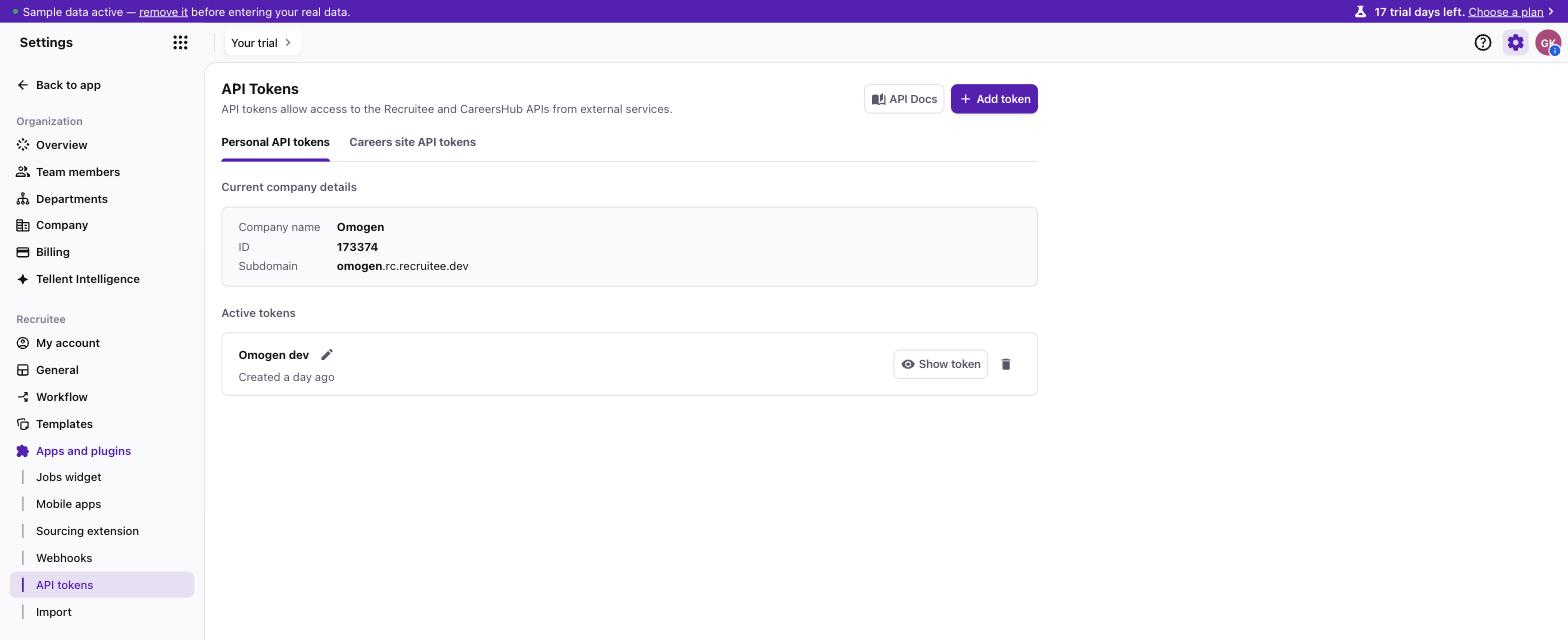
In Recruitee, open Settings > Apps and plugins > API tokens, tab Personal API tokens.
- Note the company ID shown under Current company details. This is your company ID.
- Click Add token, give it a name (for example "Omogen") and copy the token. Omogen uses this personal API token to read your jobs, candidates and CVs, and to post notes and move candidates.
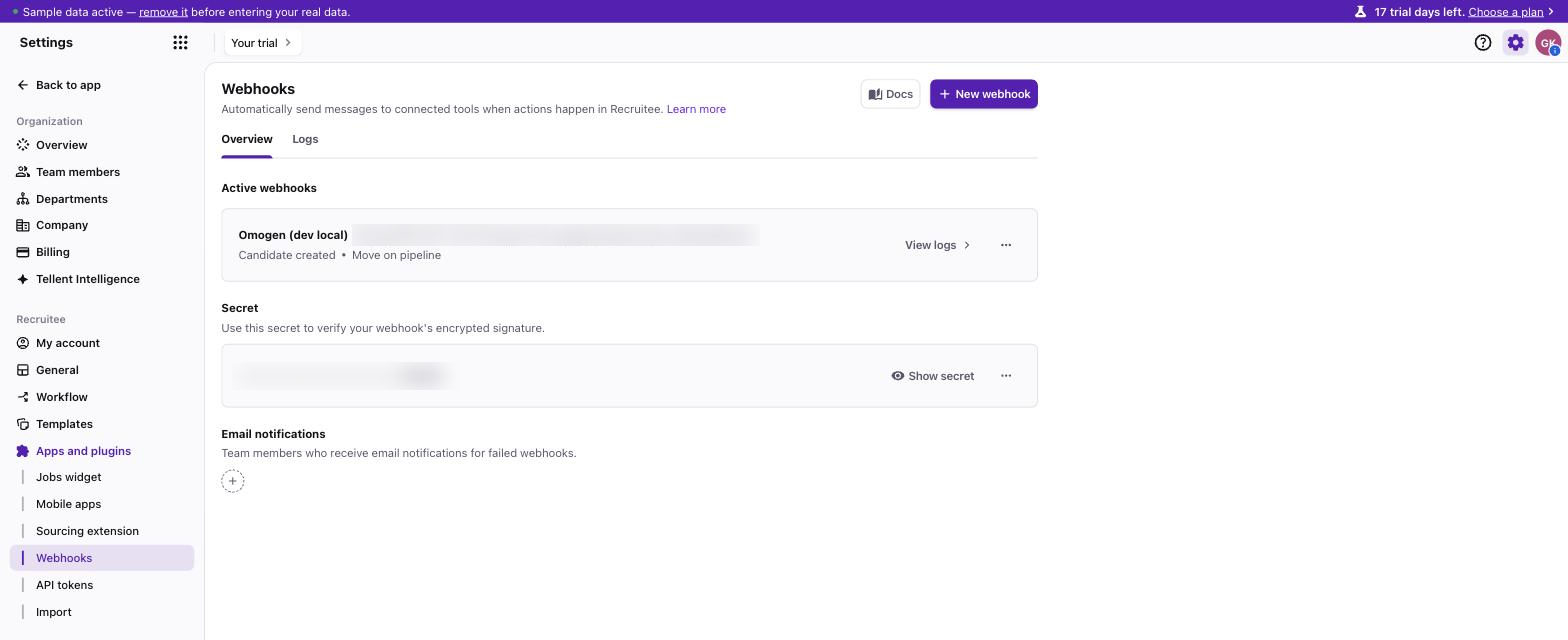
If you want Omogen to start automatically (see Launch Omogen automatically with webhooks), also open Settings > Apps and plugins > Webhooks and copy the Secret with Show secret. There is one secret for the whole company.
Keep these values private
The API token and the webhook secret give access to your Recruitee data. Paste them only into Omogen and never share them by email or chat.
Step 2: Enable Recruitee in Omogen
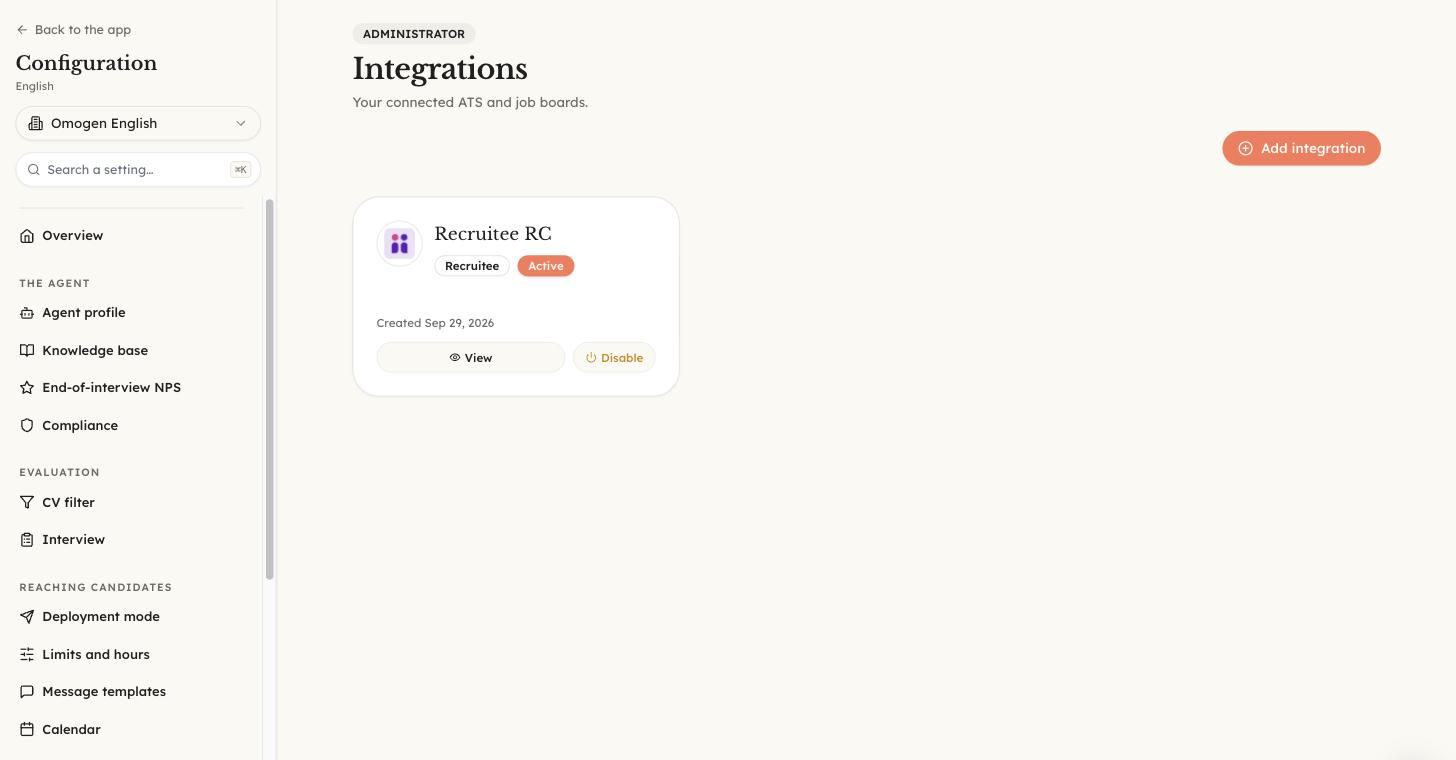
- Log in to Omogen at agent.omogen.ai and open Integrations.
- Click Add integration and select Recruitee.
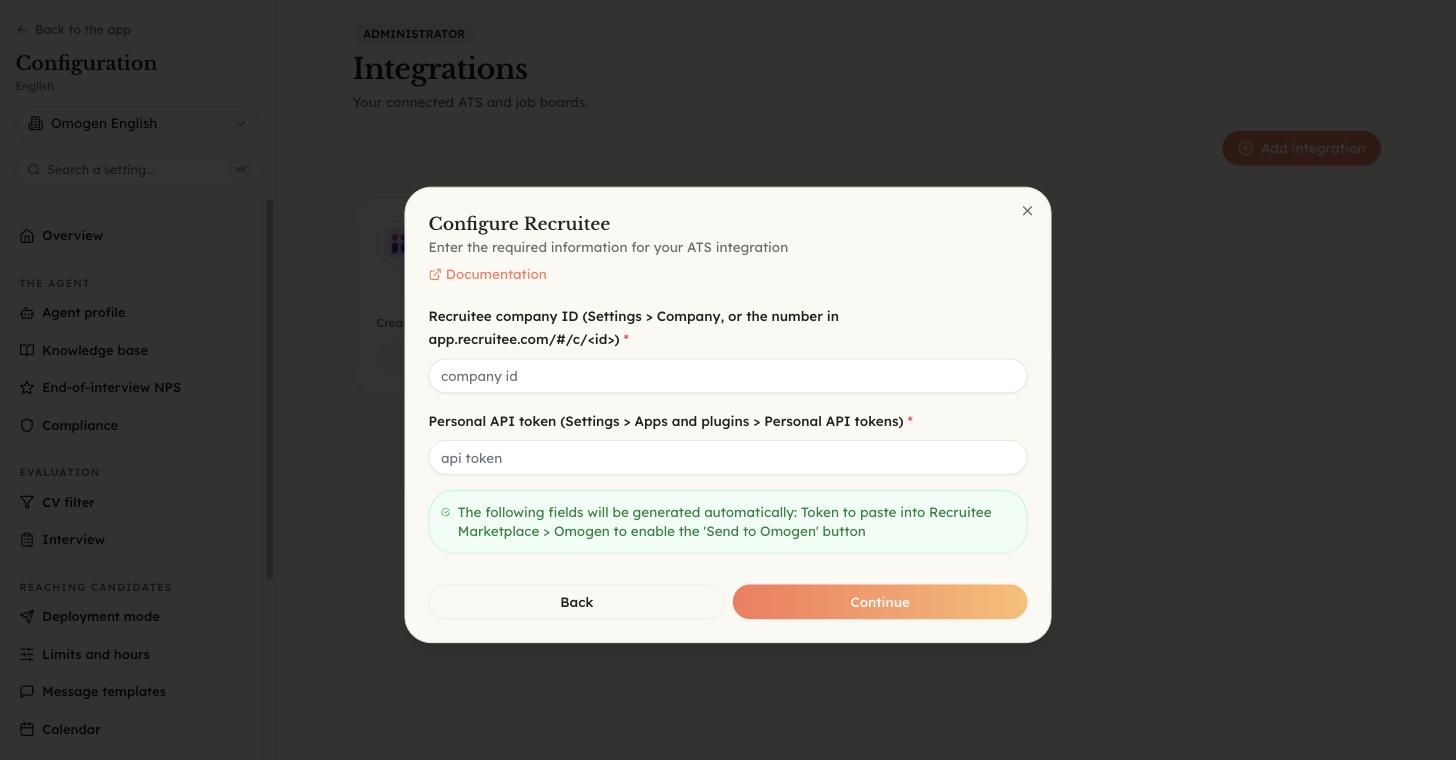
- Fill in the Recruitee company ID and the Personal API token from step 1.
- Click Continue and complete the creation. Omogen generates the Omogen Key for you.
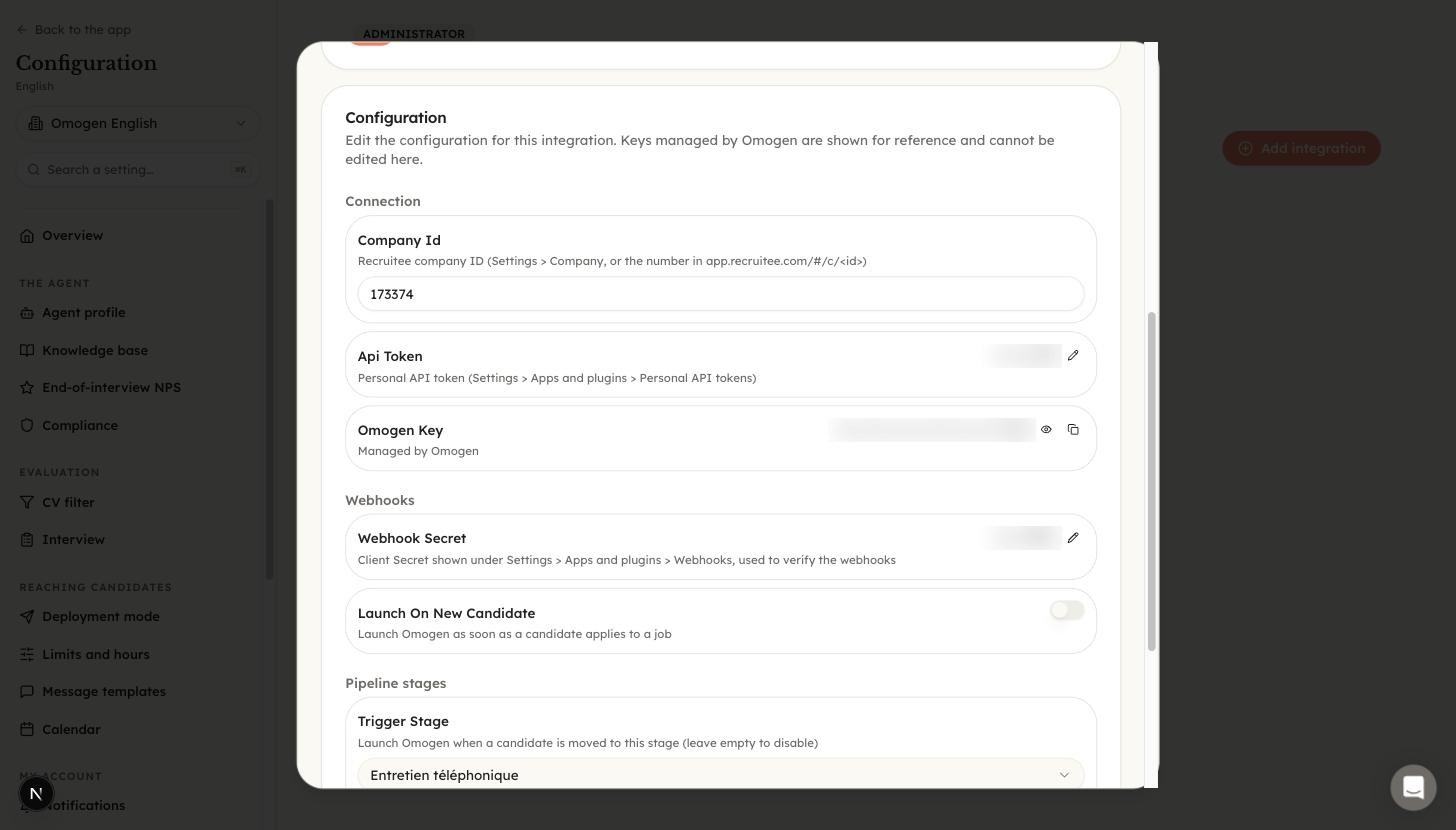
Step 3: Copy the Omogen Key
- On the Recruitee integration card, click View.
- Open the Configuration tab.
- In the Connection section, copy the Omogen Key with the copy icon. You will paste it into Recruitee in the next step.
Step 4: Activate Omogen in the Recruitee Marketplace
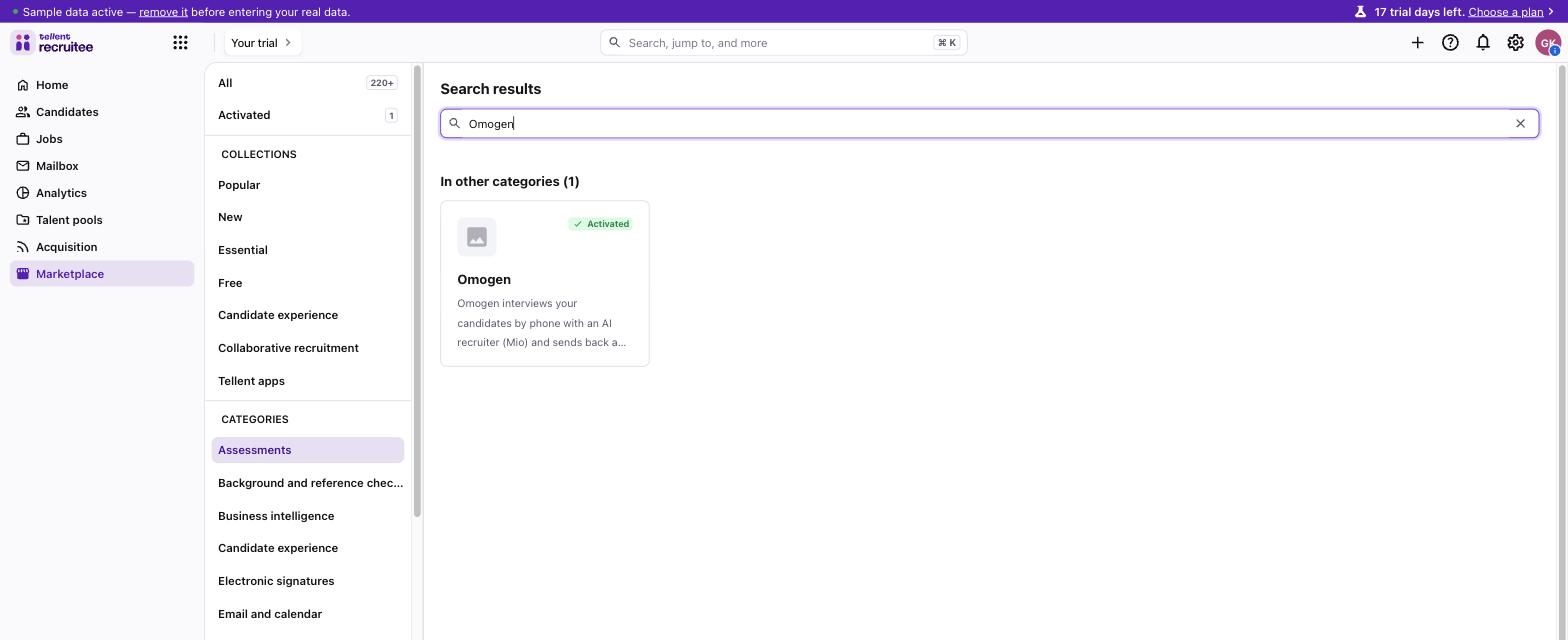
- In Recruitee, open Marketplace.
- Under Categories, choose Assessments, or type "Omogen" in the search field, and open Omogen.
- Click Integrate and accept the terms.
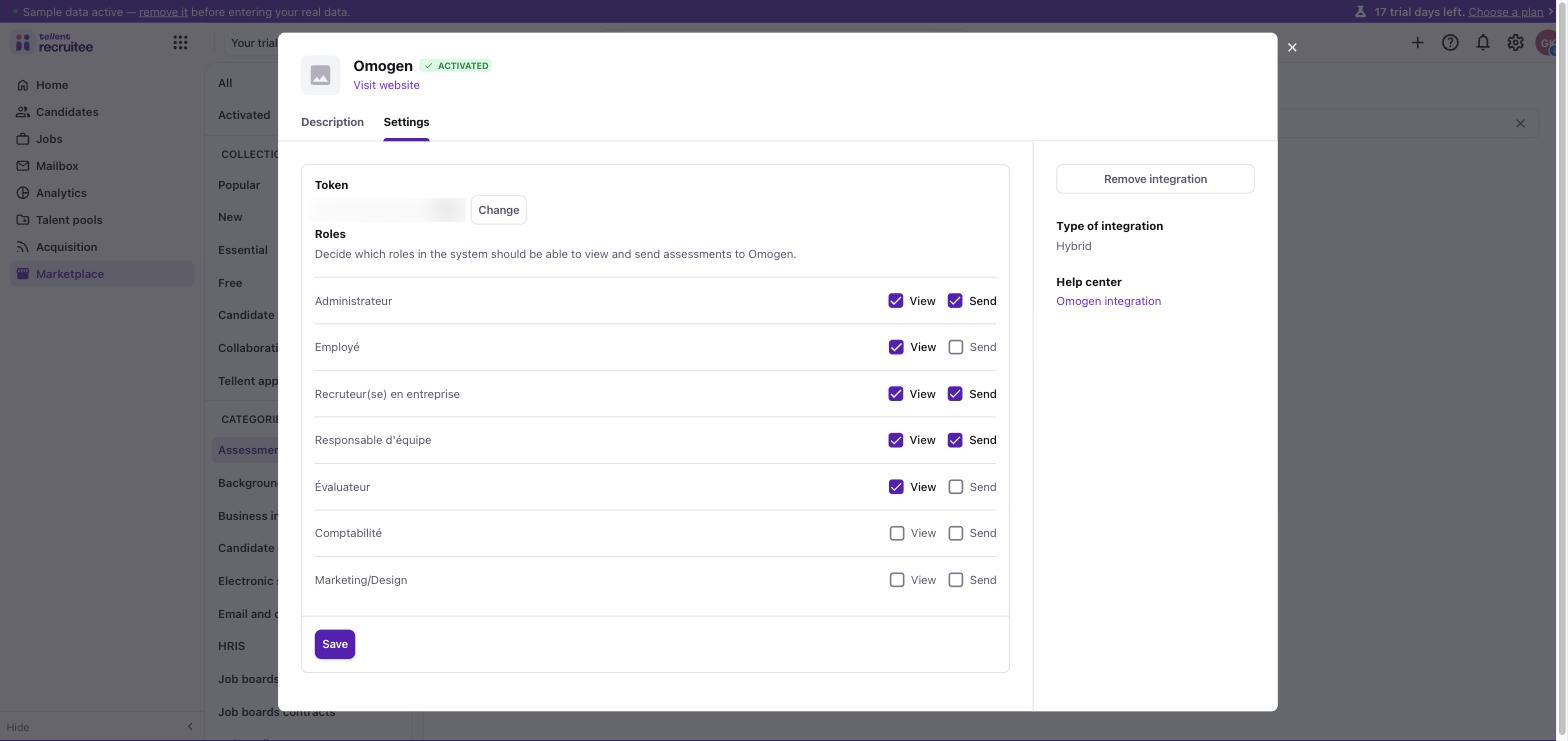
- Paste the Omogen Key into the Token field.
- In the Settings tab, choose which roles can View Omogen results and Send candidates to Omogen.
- Click Save.
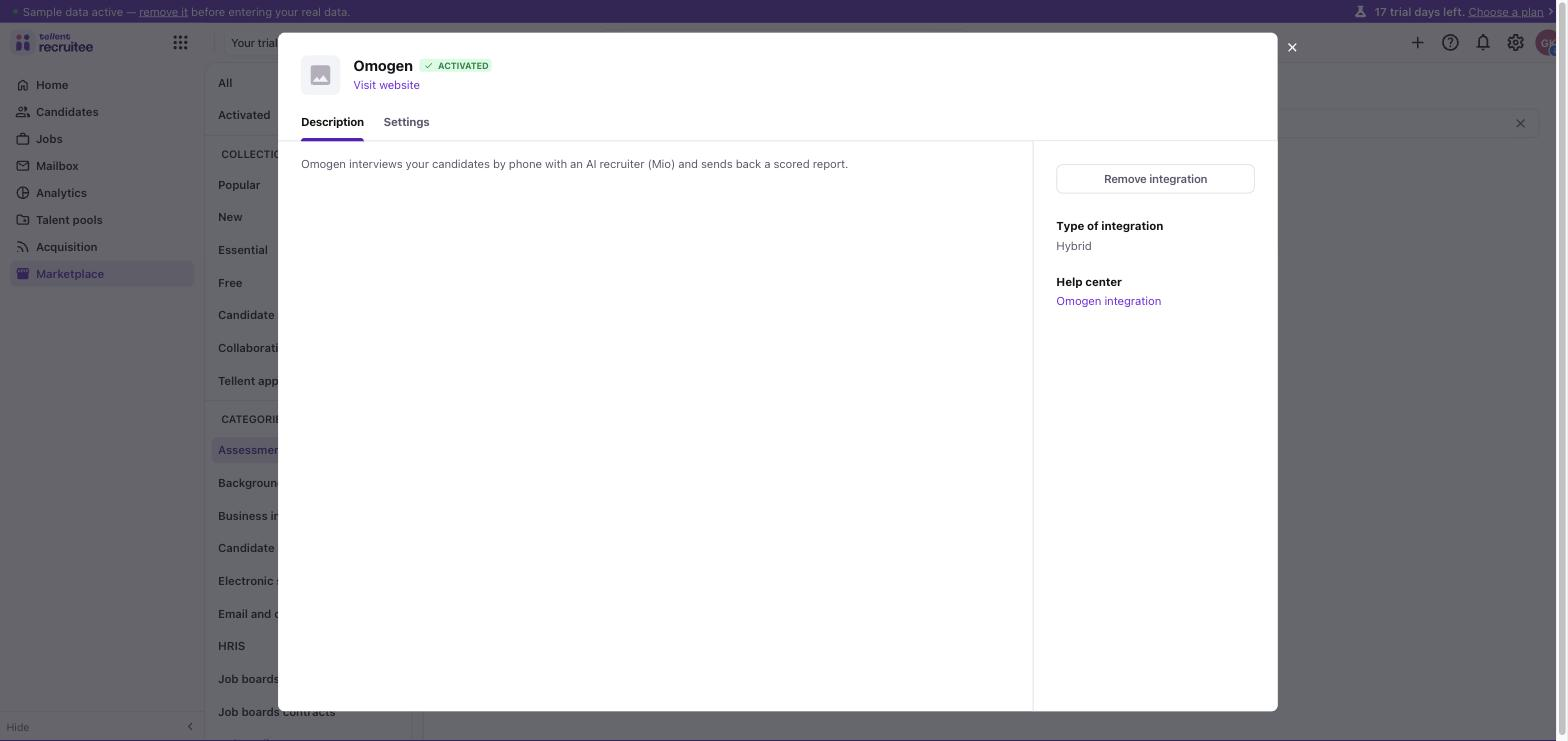
The integration now shows as Activated, and the Send Omogen test action is available on your candidates.
How to use Omogen in Recruitee
Send a candidate to Omogen
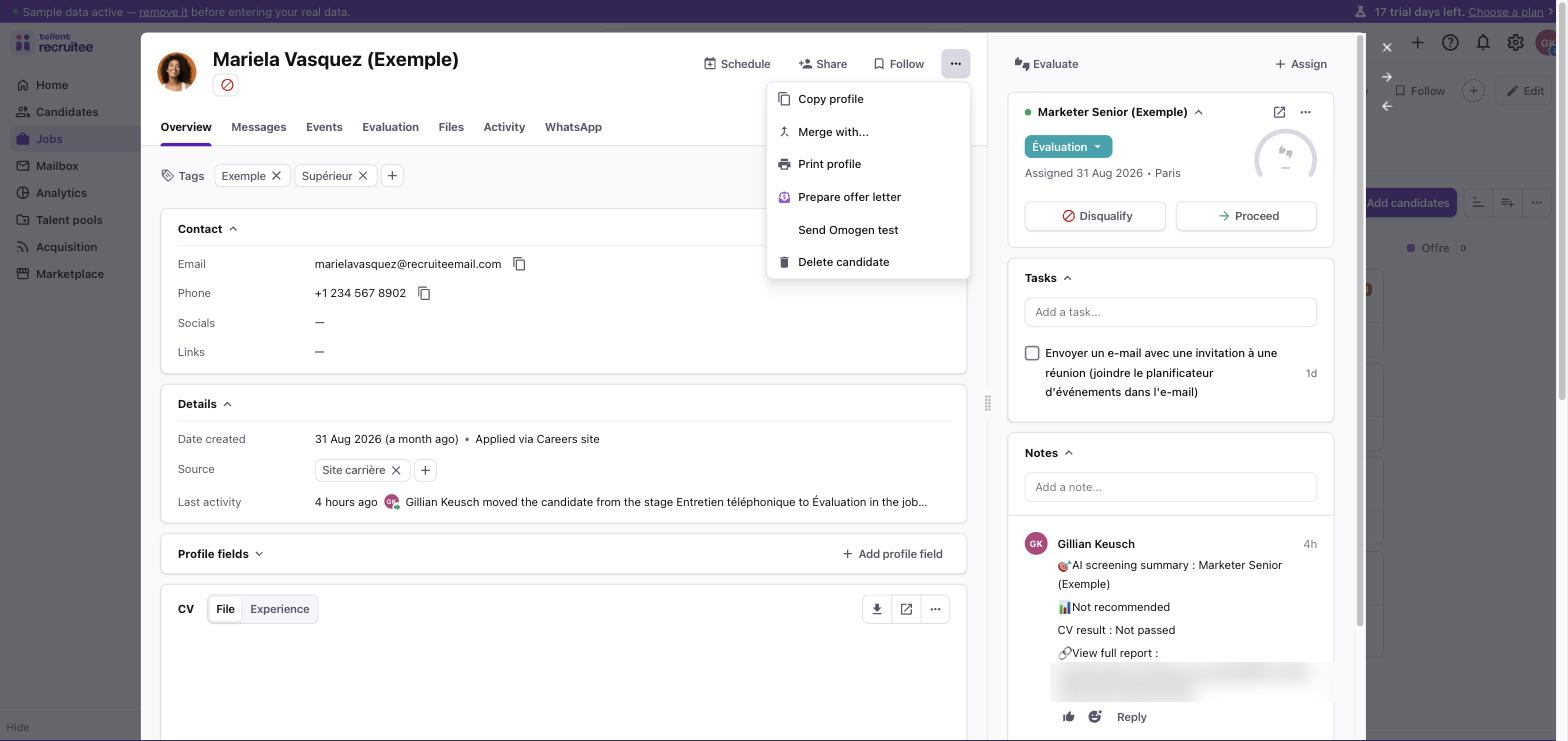
- Open a candidate in Recruitee.
- Click the … menu at the top of the profile and choose Send Omogen test.
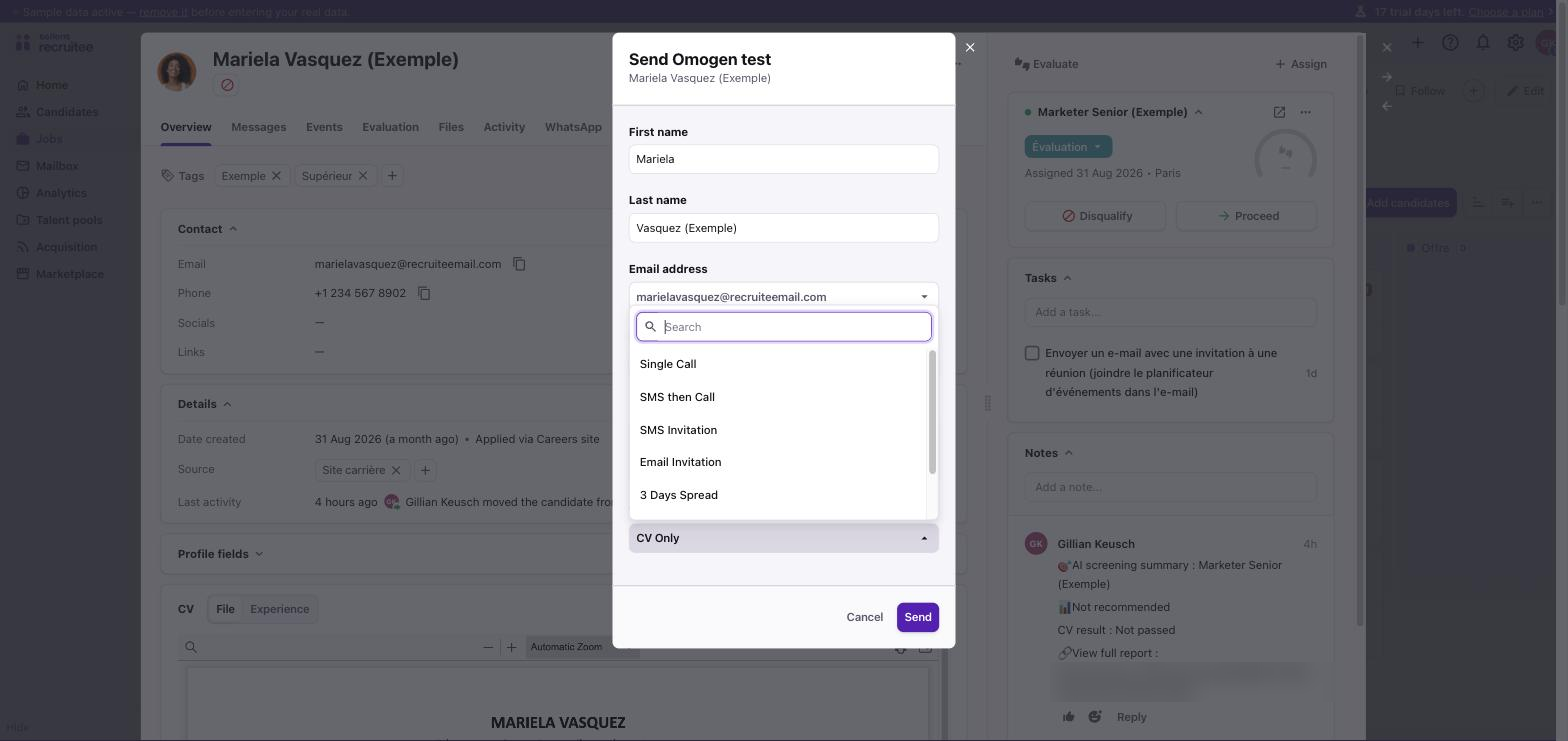
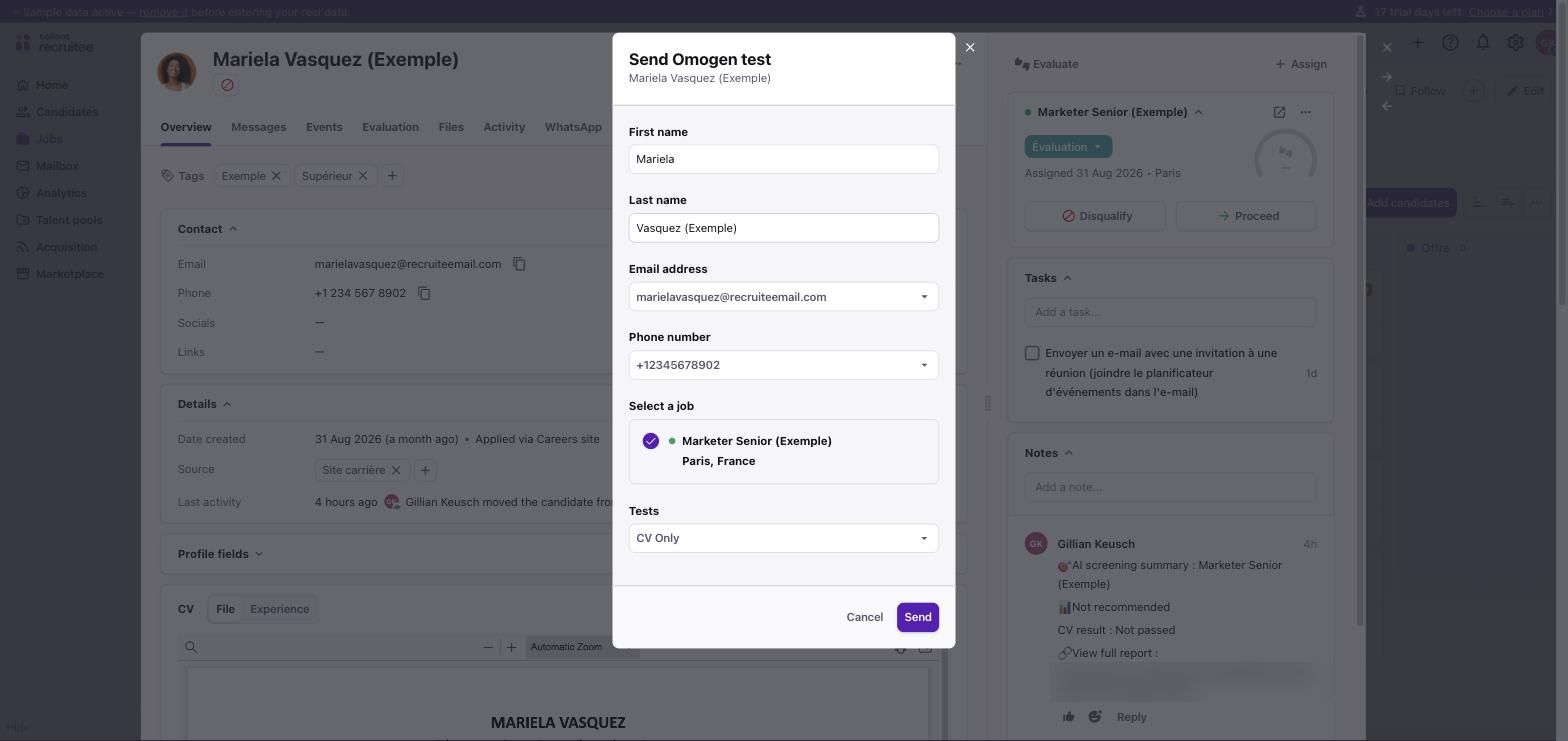
- Check the candidate's first name, last name, email address and phone number.
- Under Select a job, pick the job the candidate is assessed for. A job is required.
- Under Tests, pick the interview flow. The list shows the flows available in your Omogen organization, for example CV Only (CV screening without a call), Single Call, SMS then Call, SMS Invitation, Email Invitation or 3 Days Spread.
- Click Send.
Omogen reads the job and the candidate's CV from Recruitee and starts the screening. The first time a job is used, Omogen creates it on its side and builds the screening criteria from the job's description and requirements, so the job must have a description in Recruitee.
Where the result appears
Once the screening is complete, you find the result on the candidate in Recruitee:
| Where | What you see |
|---|---|
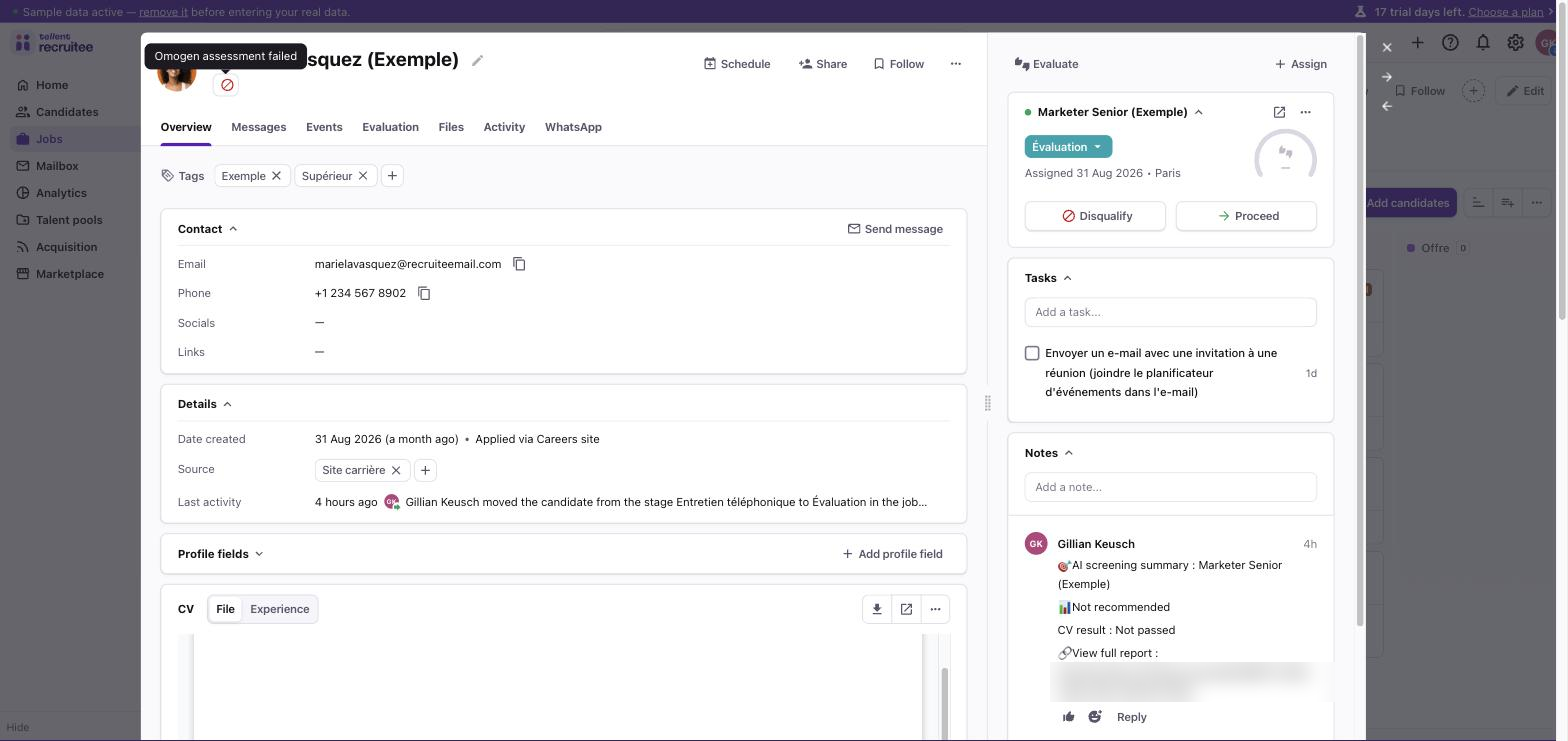
| Report badge, under the candidate's name | The status of the Omogen assessment. When an interview took place, the badge shows the overall score as a percentage. The report carries the outcome (recommended, not recommended or inconclusive), the CV result, one line per evaluated criterion, and a link that opens the full report in Omogen. A candidate who is not recommended is shown as failed. |
| Note, in the Notes panel | A summary of the screening: the job, the outcome (with the score out of 100 when an interview took place), the CV result, the evaluated criteria, Omogen's recommendation and a link to the full report in Omogen. |
| Pipeline stage | The candidate is moved to the stage you mapped to the outcome (see Stage routing). |
TIP
The report badge exists for candidates sent with Send Omogen test. Candidates launched automatically by a webhook receive the note and the stage move.
Launch Omogen automatically with webhooks
Instead of sending candidates one by one, you can let Recruitee tell Omogen when something happens in your pipeline.
1. Create the webhook in Recruitee
In Recruitee, open Settings > Apps and plugins > Webhooks and click New webhook.
Enter the Omogen webhook URL:
https://api.omogen.ai/api/v1/partner/recruitee/webhookThe URL is the same for every company: Omogen recognises yours from the event, signed with your webhook secret.
Select the events Candidate created and Move on pipeline, then save.
Copy the Secret shown on the Webhooks page (see step 1 of the setup).
2. Choose when Omogen starts
- In Omogen, open Integrations, click View on the Recruitee integration, then open the Configuration tab.
- In the Webhooks section, paste the secret into Webhook Secret. Omogen uses it to check that each webhook really comes from your Recruitee company. It is required as soon as one of the two options below is on.
- Choose one or both launch options:
- Launch On New Candidate: Omogen starts as soon as a candidate applies to a job.
- Trigger Stage: Omogen starts when a candidate is moved to this pipeline stage. Leave it empty to disable it.
- Click Save changes.
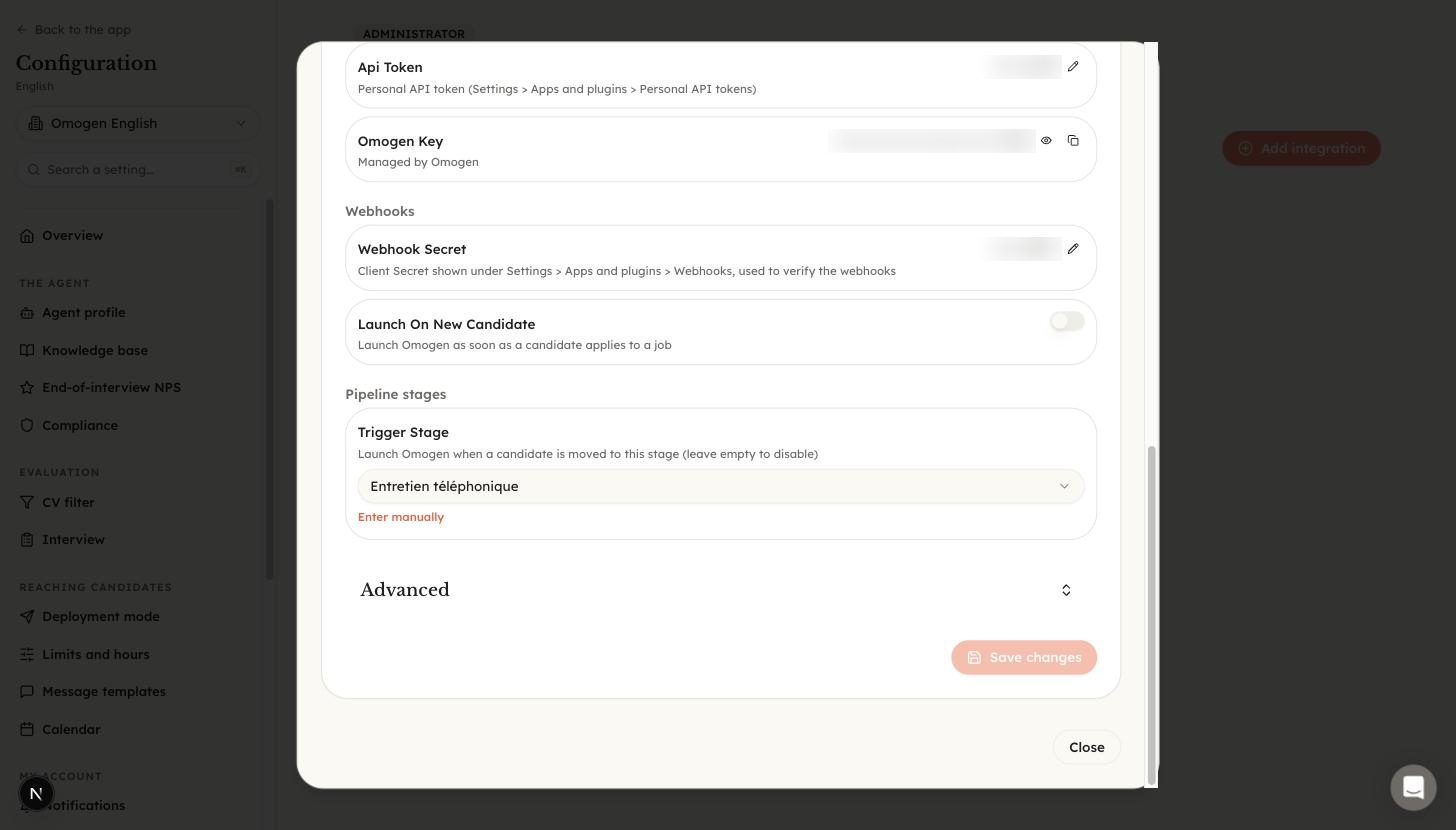
Candidates launched by a webhook follow the default pre-qualification flow of your Omogen organization. Their result comes back to Recruitee as a note and a stage move.
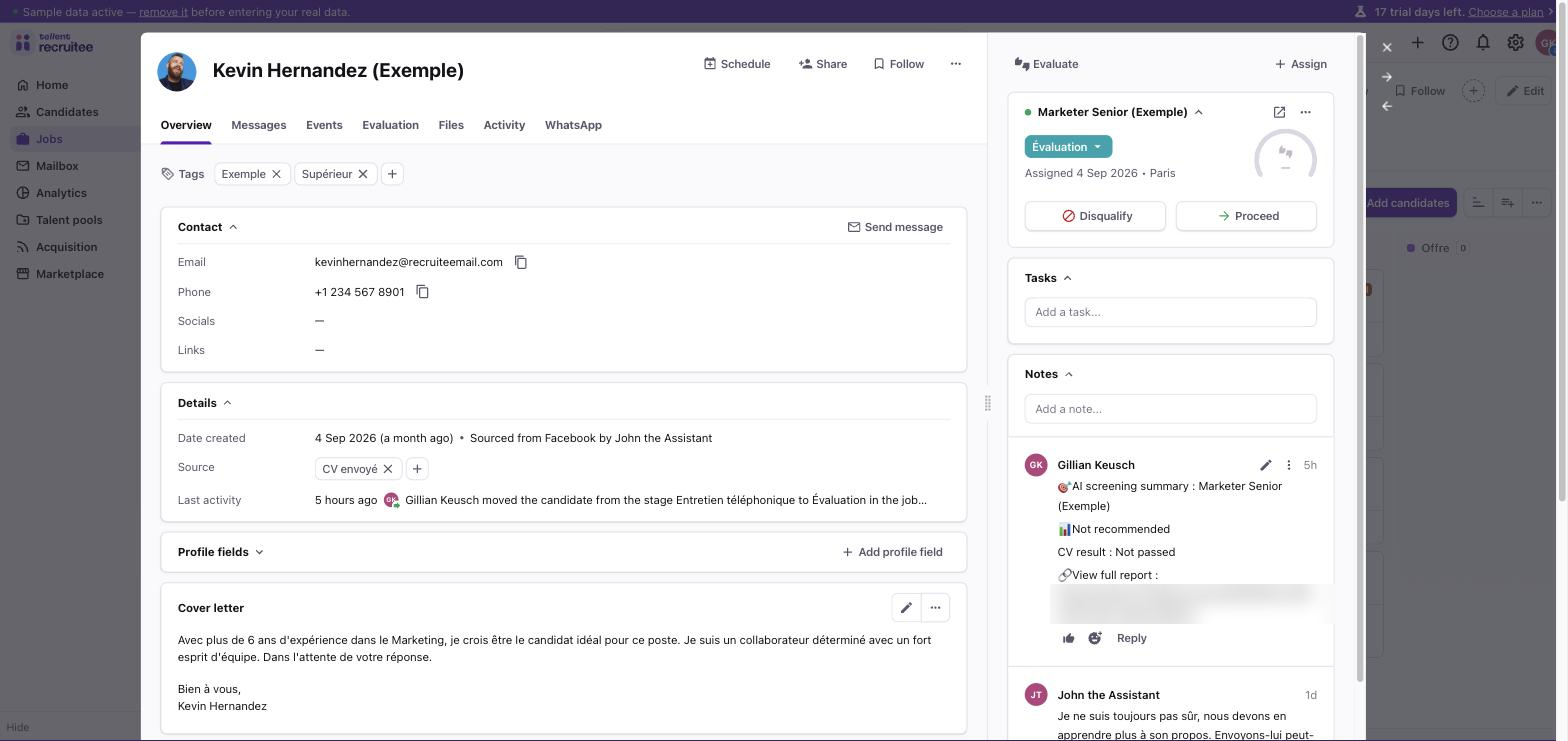
Stage routing
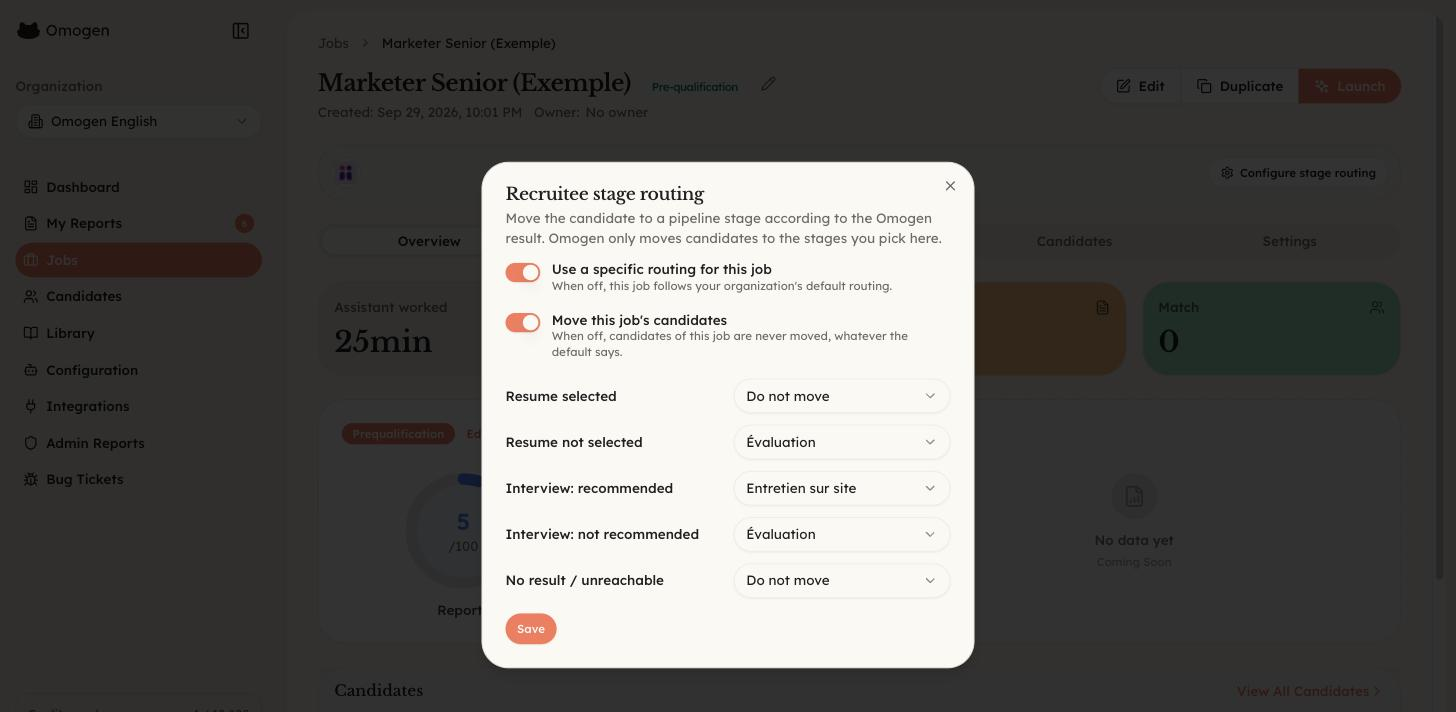
Stage routing tells Omogen where to move the candidate in your Recruitee pipeline once the result is known. You choose one Recruitee stage per outcome, or Do not move:
| Outcome | When |
|---|---|
| Resume selected | The CV meets the criteria of the job and there is no interview result (CV-only flow, or the interview did not take place). |
| Resume not selected | The CV does not meet the criteria of the job. |
| Interview: recommended | The candidate was interviewed and is recommended. |
| Interview: not recommended | The candidate was interviewed and is not recommended. |
| No result / unreachable | Omogen has no usable result, for example because the candidate could not be reached. |
Default routing for your organization
- In Omogen, open Integrations, click View on the Recruitee integration, then open the Configuration tab.
- In Default stage routing, turn on Move candidates according to the Omogen result.
- Choose a stage for each outcome and click Save.
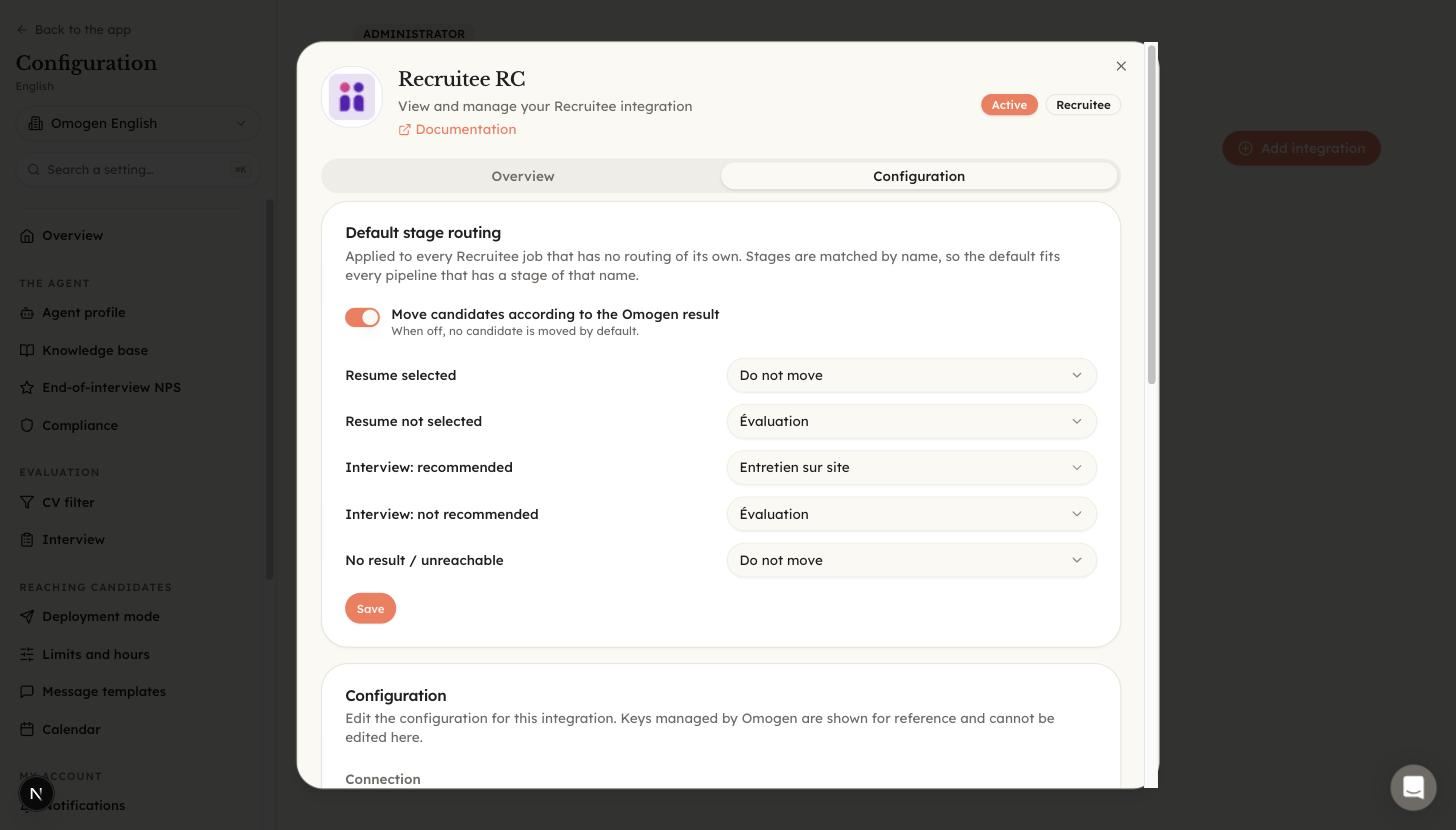
The default applies to every Recruitee job that has no routing of its own. Stages are matched by name, so one default fits every pipeline that has a stage of that name.
Routing for one job
- Open the job in Omogen. In the Recruitee banner at the top, click Configure stage routing.
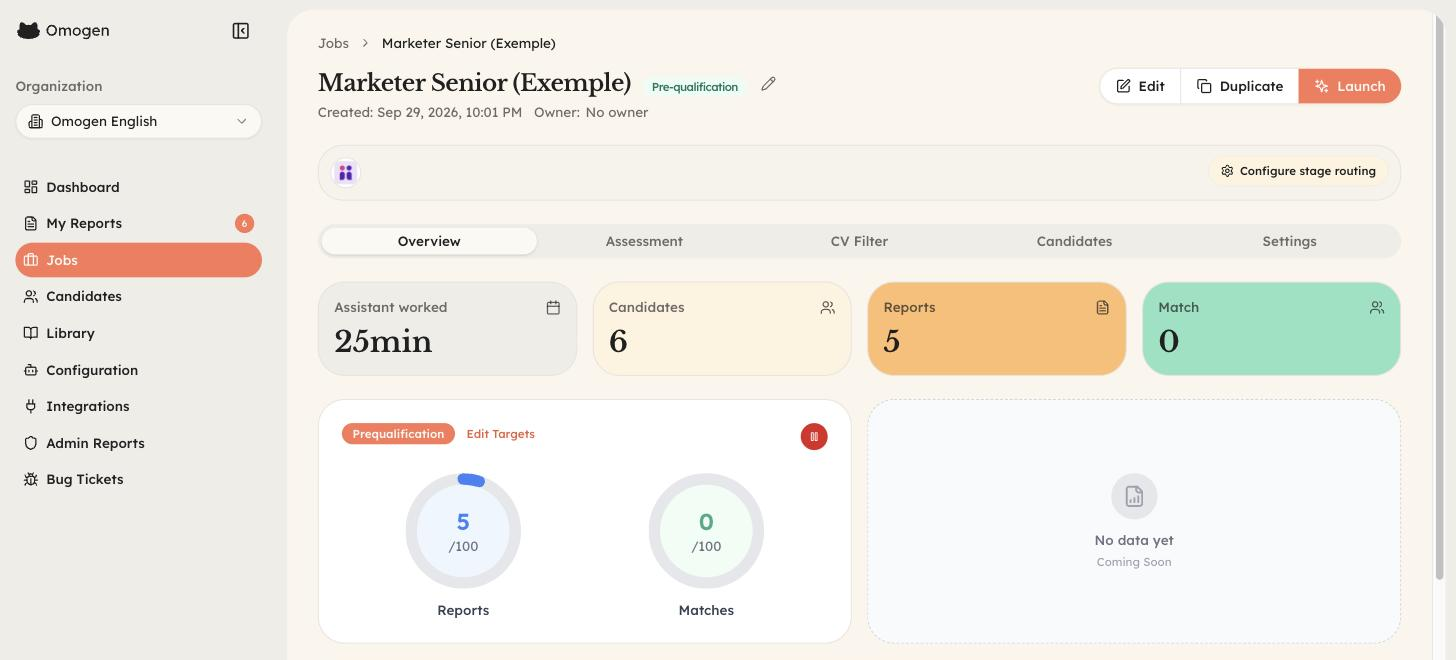
- Turn on Use a specific routing for this job.
- Choose a stage for each outcome, or turn off Move this job's candidates if the candidates of this job must never be moved.
- Click Save.
Good to know
- Omogen only moves candidates to stages you picked. It never chooses a stage on its own.
- If the pipeline of a job has no stage with the chosen name, the candidate stays where they are.
- A hired candidate is never moved.
Import a Recruitee job into Omogen
Importing a job is optional: Omogen creates the job automatically the first time a candidate is sent for it. Import it beforehand when you want to review the screening criteria and the interview before the first candidate.
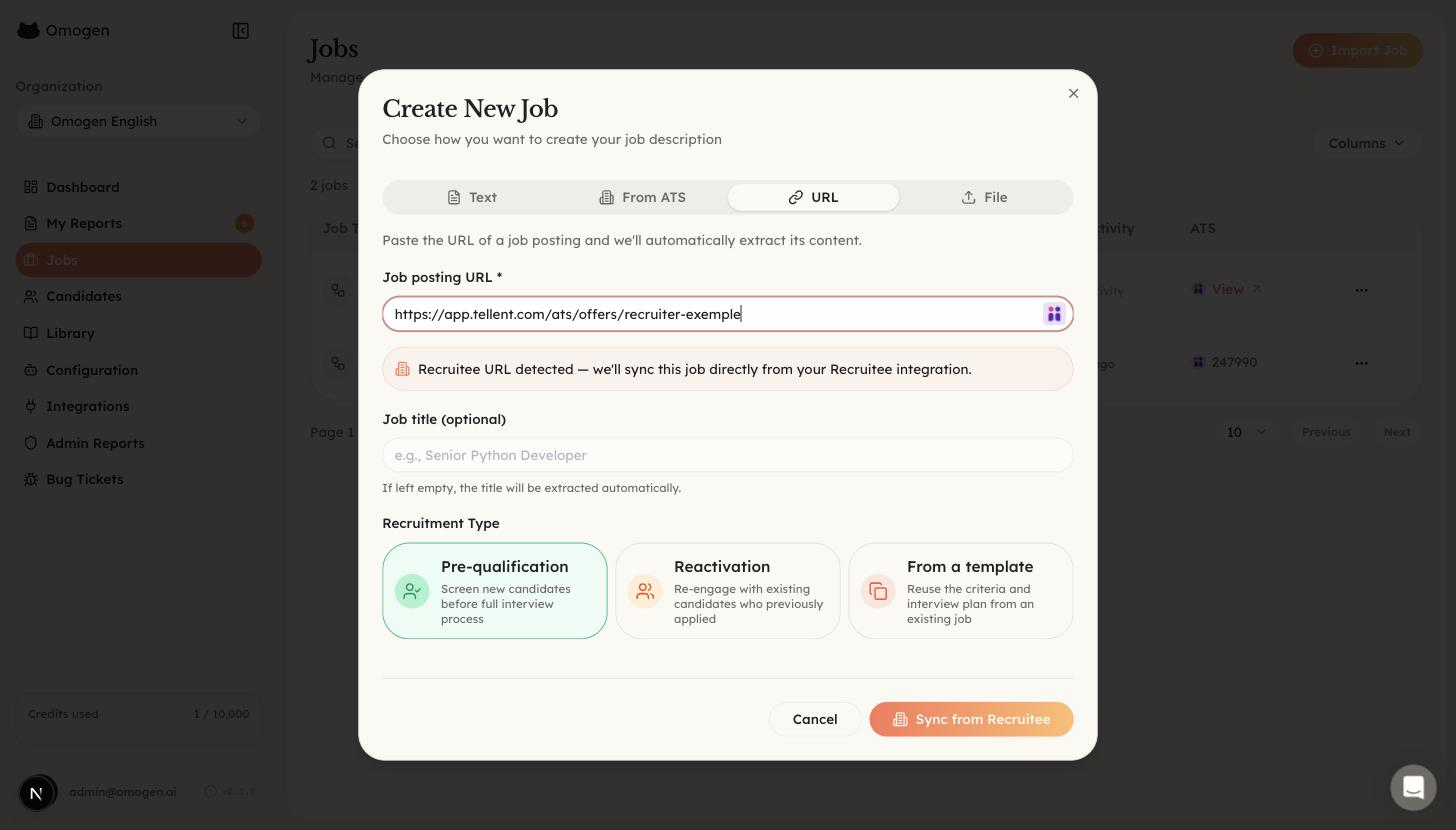
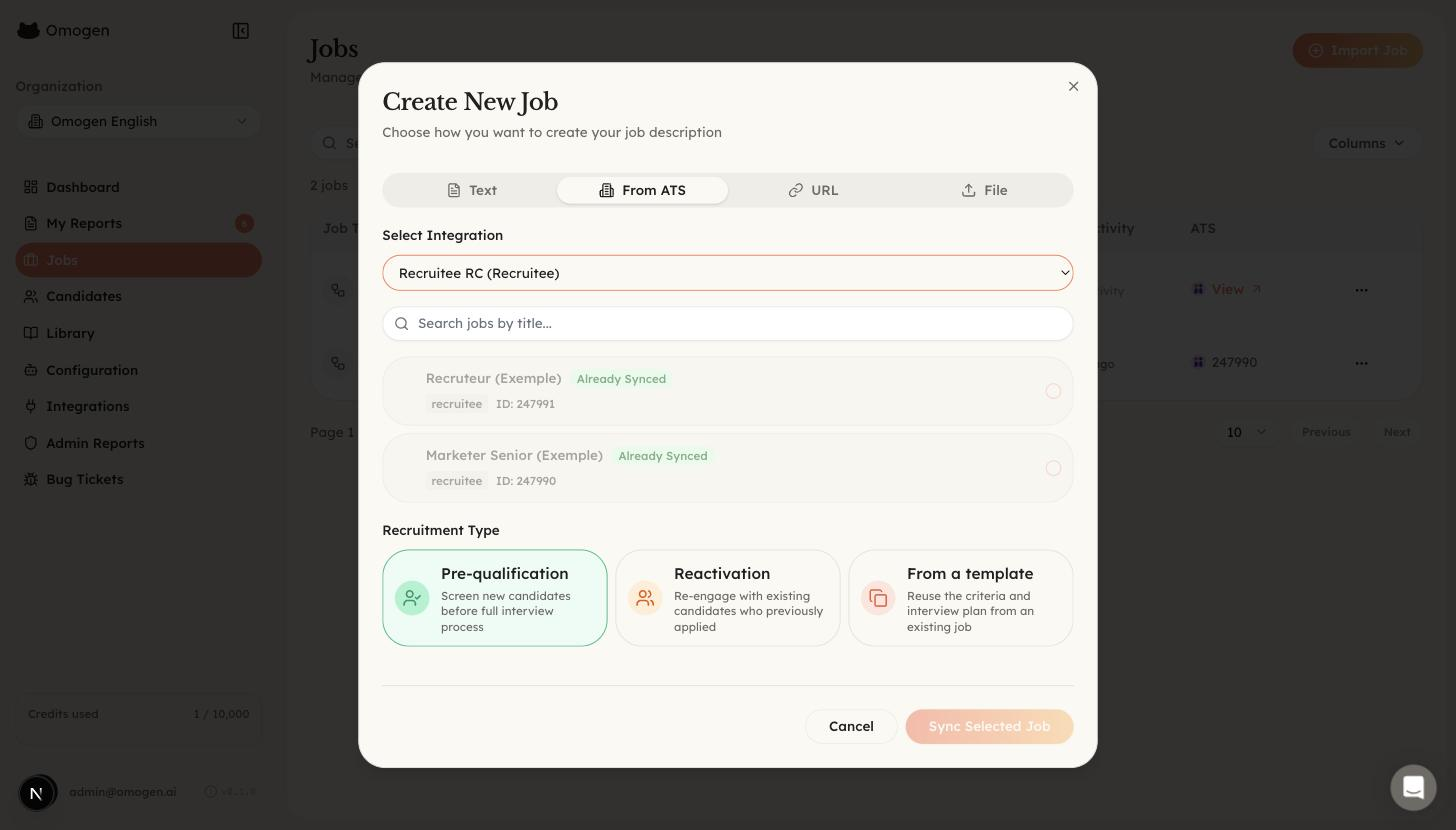
In Omogen, open Jobs and click Import Job. Then use one of these two options:
- URL: paste the address of the job from Recruitee. Omogen recognises it ("Recruitee URL detected") and you click Sync from Recruitee.
- From ATS: select your Recruitee integration, pick the job in the list, and click Sync Selected Job.
What data is exchanged
From Recruitee to Omogen
| Data | Details |
|---|---|
| Candidate | First name, last name, email address, phone number |
| CV | The candidate's CV file |
| Job | Title, description, requirements, and the stages of its pipeline |
From Omogen to Recruitee
| Data | Details |
|---|---|
| Assessment report | Status, score, outcome, evaluated criteria, link to the full report in Omogen |
| Note | A summary of the screening on the candidate profile |
| Pipeline stage | The candidate is moved to the stage you mapped to the outcome |
Omogen reads and writes this data through the Recruitee API with the personal API token you provided. To stop the exchange, click Disable on the Recruitee integration in Omogen.
Troubleshooting
"Send Omogen test" does not appear on the candidate
- Check that Omogen shows as Activated in the Recruitee Marketplace.
- In the Omogen Settings tab of the Marketplace, check that your role has the Send permission.
Candidates are not launched automatically
- Check that the webhook exists in Recruitee, points to the Omogen URL, and includes the events Candidate created and Move on pipeline.
- Check that the Webhook Secret in Omogen matches the secret shown in Recruitee.
- Check that Launch On New Candidate is on, or that Trigger Stage has exactly the name of the stage in your pipeline.
The candidate is not moved after the result
- Check that the default routing is on, or that the job has its own routing.
- Check that the chosen stage exists, with the same name, in the pipeline of the job.
- A hired candidate is never moved.
How to reach us
For any question about the integration, write to support@omogen.ai. You can also read the FAQ & Support section.
Last updated: 2026-10-05