

Using Omogen in Ashby
🧩 Chrome Extension — Omogen Connector
Open any Ashby job in Omogen with one click from your ATS. Install the extension →
Omogen integrates natively with Ashby via the assessment system. Once configured in the Interview Plan, Omogen triggers automatically as soon as a candidate reaches the relevant stage.
Why Omogen?
Simplify and accelerate pre-screening
- Immediate evaluation of all applications
- Instant summary of candidate strengths / weaknesses
- Objective matching score based on your criteria
1,000+ applications processed in 1 minute by Mio, our AI agent, available 24/7.
Reduce time spent on repetitive tasks
- Automated reading and sorting of applications
- Candidate ranking based on your criteria
- Candidate profile updates in your ATS
15 hours saved / week / recruiter on average across our clients.
Standardize pre-screening processes
- Uniform pre-screening method, with ultra-personalized interviews
- Reduction of human bias
- Consistency of information gathered from candidates
100% of candidate profiles updated in your ATS after Omogen's evaluation.
Improve the candidate experience
- Faster response time
- Smoother and more transparent process
- All applications are processed
78% of candidates prefer speaking to an AI during their first interview if given the choice.
Configure the Integration (One-Time Setup)
The connection between Omogen and Ashby requires an API key exchange. This setup is performed once by your administrator.
Step 1 — Create an Ashby API Key for Omogen
- In Ashby, go to Admin > Integrations
- Search for "Omogen" in the list
- Click on the Omogen integration
- Click "+ Create new API key"
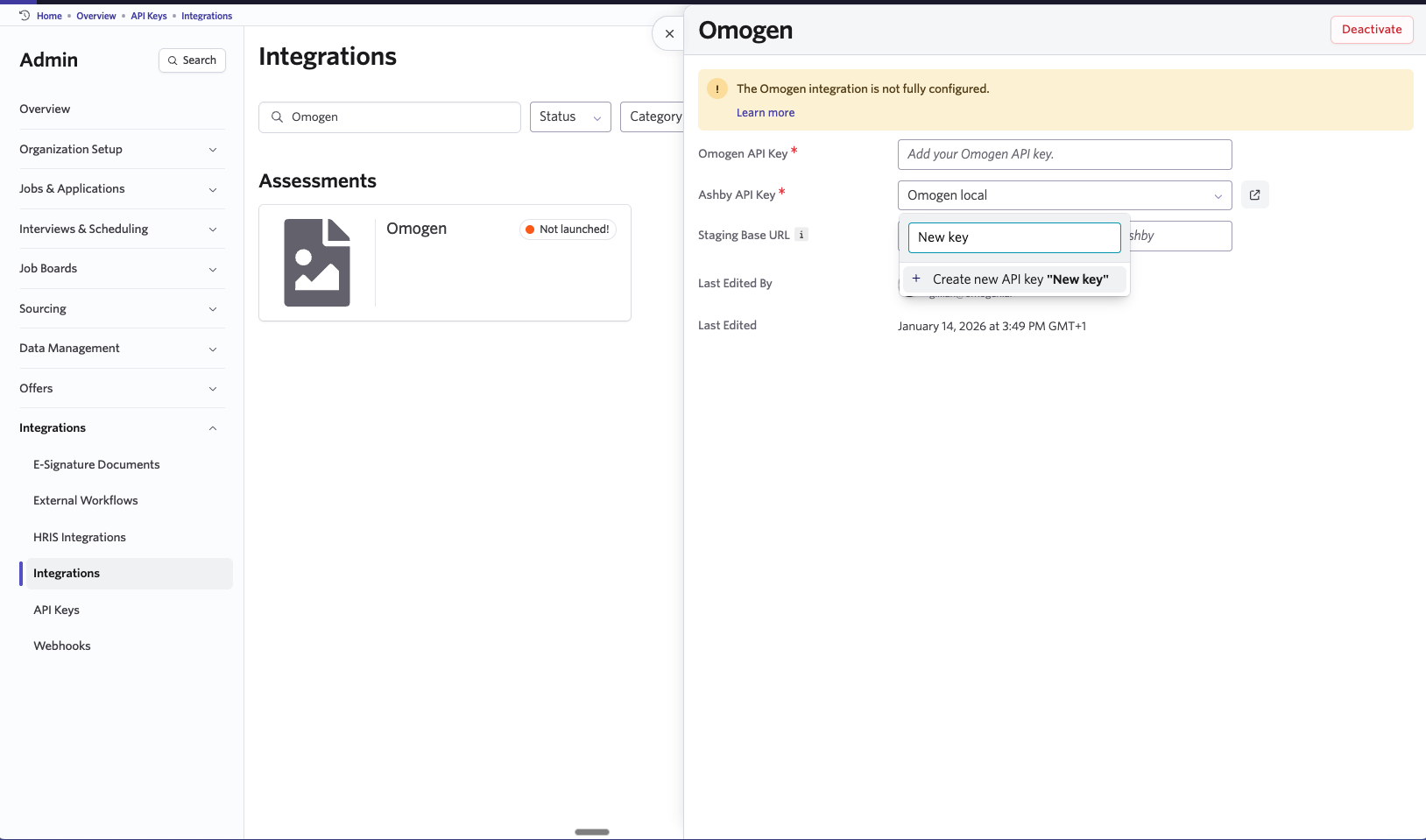
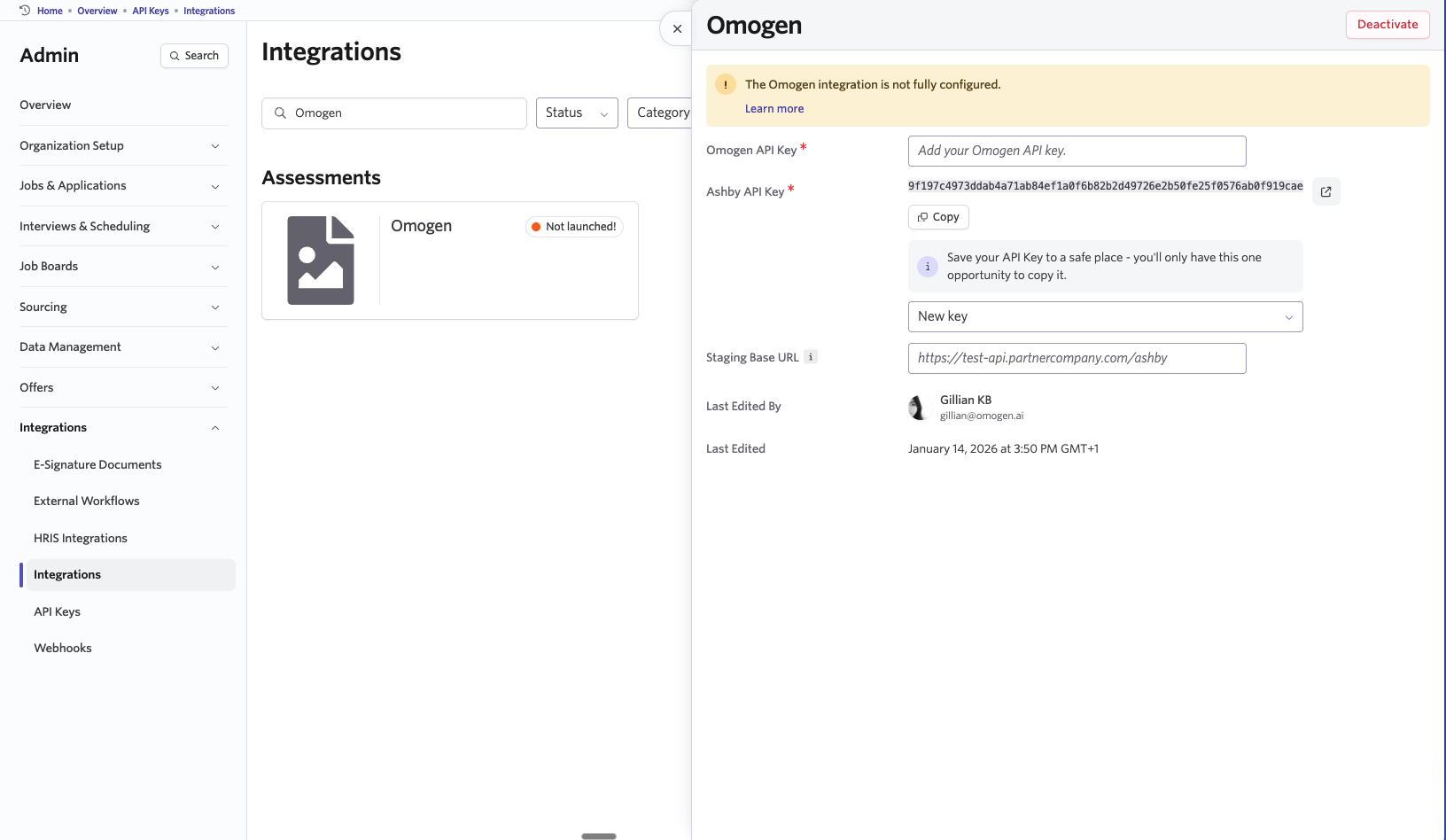
Step 2 — Copy the Ashby API Key
- Once the key is created, click "Copy"
- ⚠️ Important: Save this key in a safe place — you will only have one opportunity to copy it.
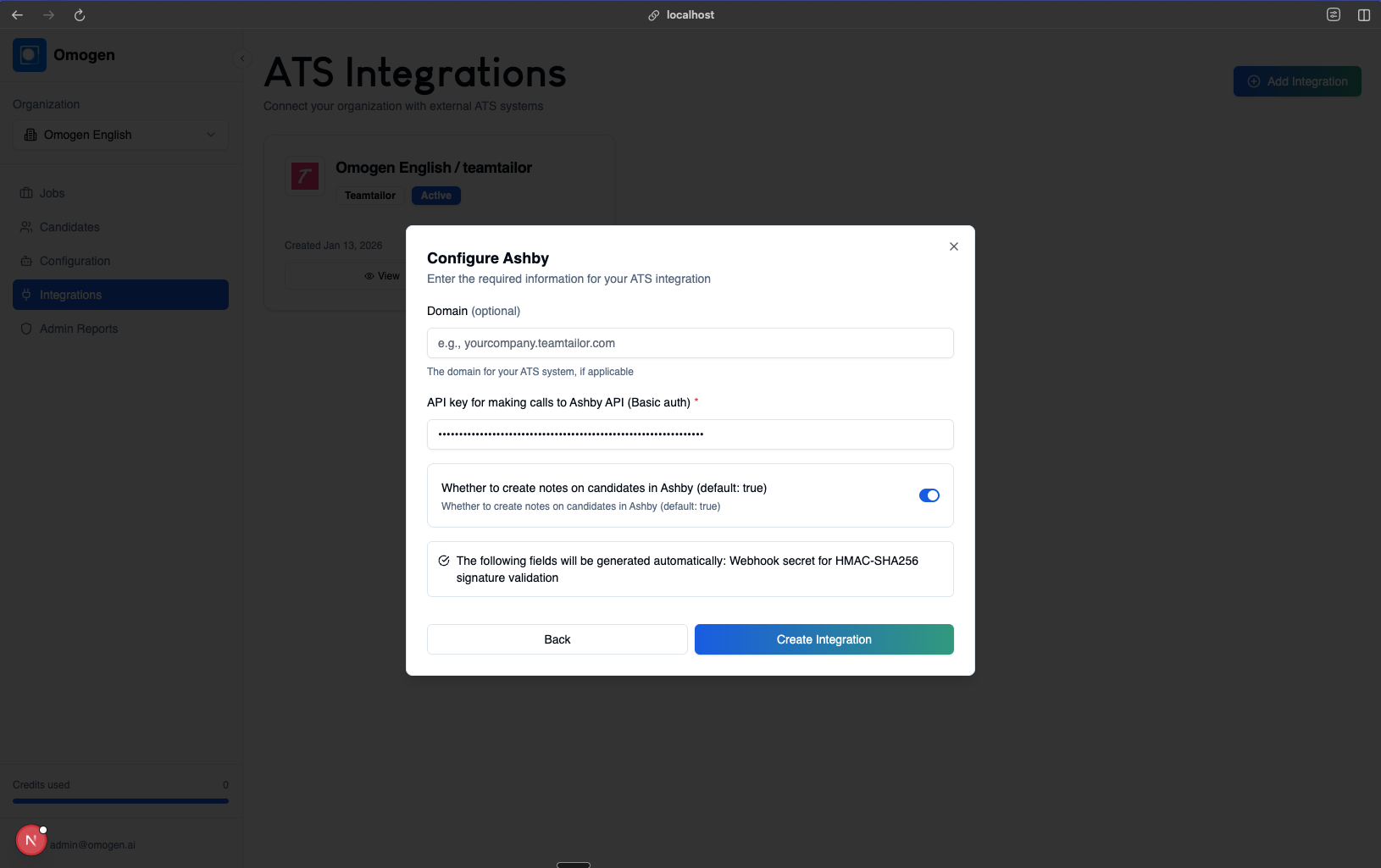
Step 3 — Configure Ashby in Omogen
- Log in to your Omogen account
- Go to Integrations > Add Integration
- Select "Ashby"
- Paste the Ashby API key
- Configure the options (e.g., creating notes on candidates)
- Click "Create Integration"
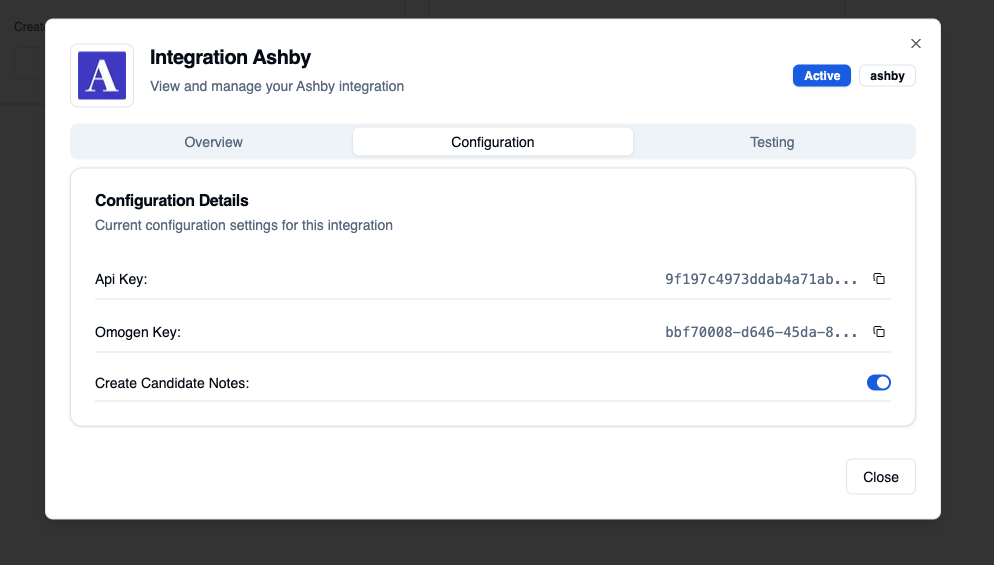
Step 4 — Retrieve the Generated Omogen Key
- Click "View" to see the details of the created integration
- In the "Configuration" tab, copy the Omogen Key
Step 5 — Finalize in Ashby
- Return to Ashby > Admin > Integrations > Omogen
- Paste the Omogen key in the "Omogen API Key" field
- The integration is now active
How Does Omogen Work in Ashby?
You have the option to work exclusively within Ashby.
The Process at a Glance
- You create a job posting in Ashby
- You configure the Interview Plan for the position
- You add an "Omogen Assessment" activity to the desired stage (e.g., New Lead)
- You select the Omogen assessment type (deployment mode)
- When a candidate reaches this stage, Omogen triggers automatically
- Omogen contacts your candidates and generates the interview report within seconds
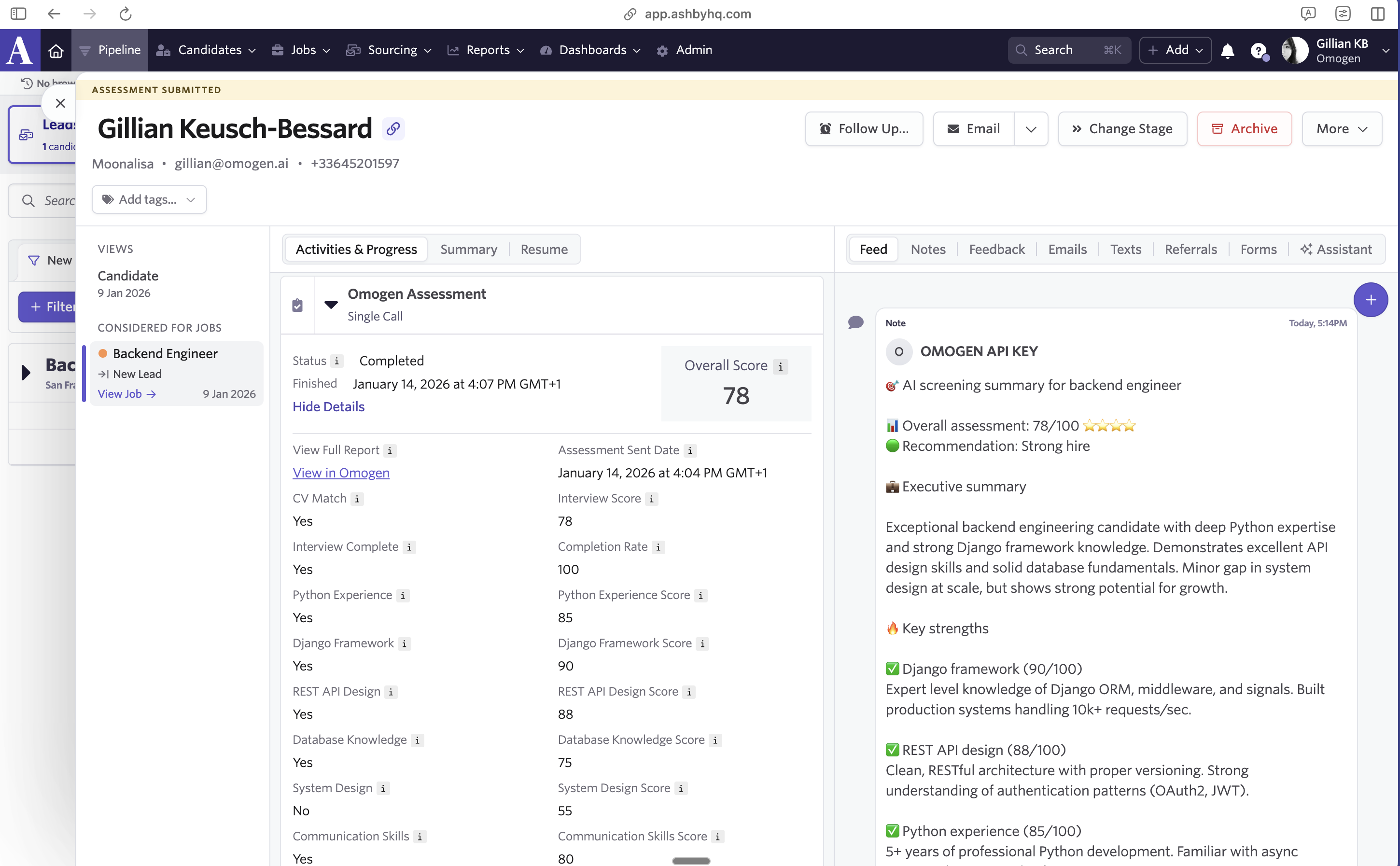
- You find directly in Ashby the interview summary:
- Candidate score / 100
- Call status
- Link to the full report as well as the audio and written interview transcript
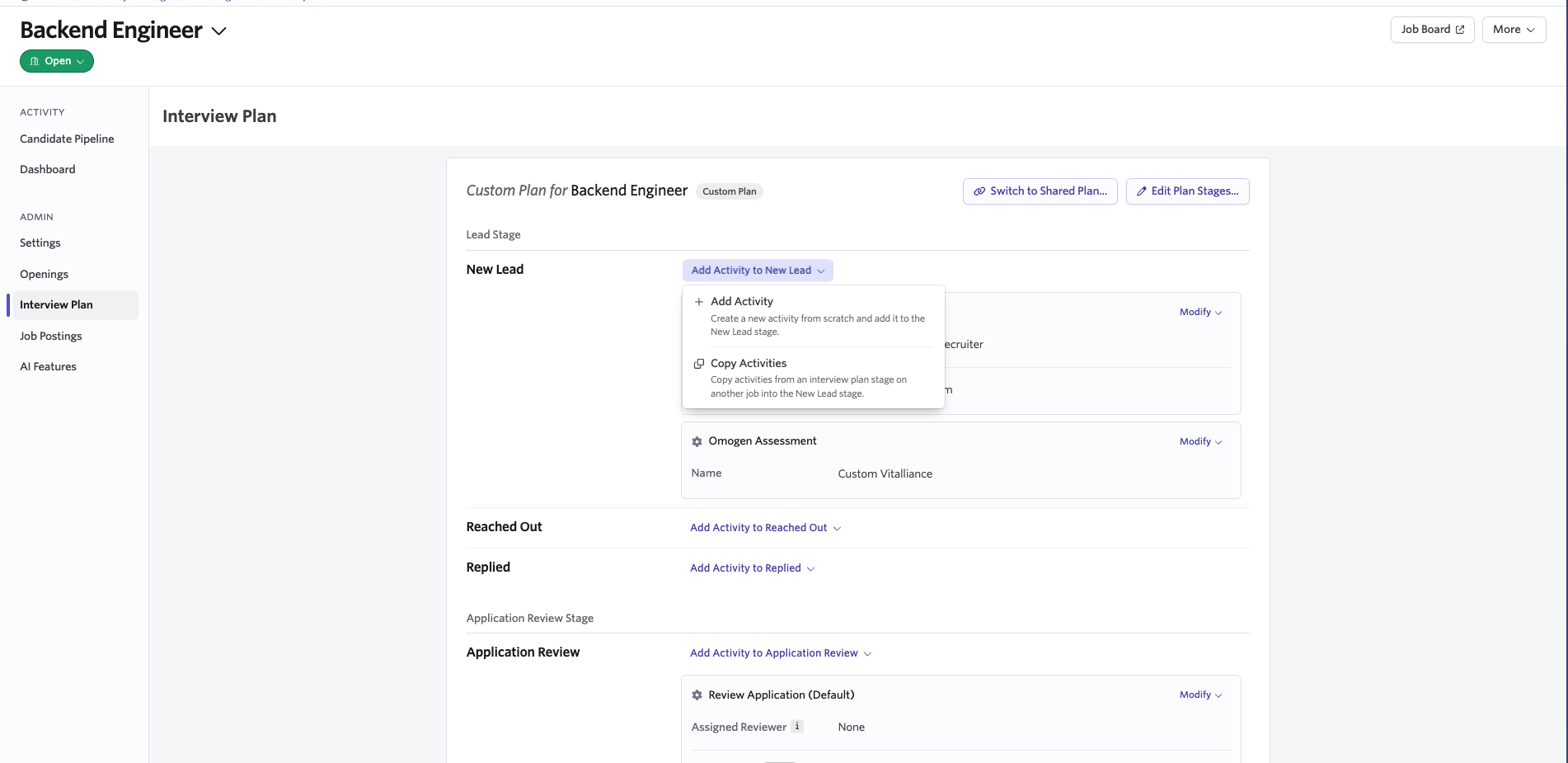
Add an Omogen Assessment in the Interview Plan
- Open the position in Ashby
- Go to Interview Plan
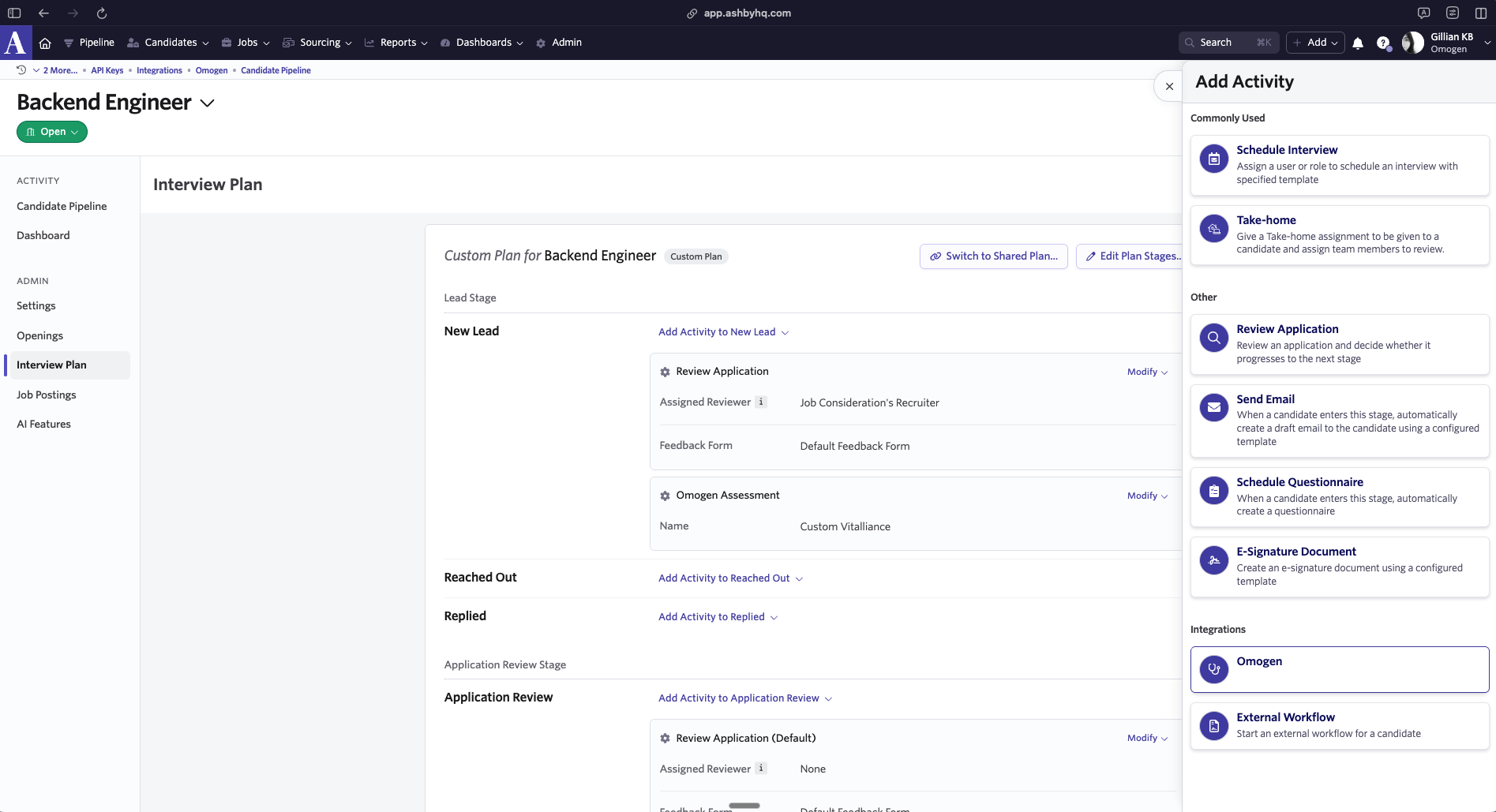
- Click "Add Activity to [Stage]" (e.g., Add Activity to New Lead)
- In the "Integrations" section, select Omogen
Choose the Assessment Type
When adding the Omogen activity, choose the deployment mode:
- 3 Days Spread — Calls spread over 3 days
- Custom Schedule — Custom scheduling
- Email Invitation — Invitation by email
- Reactivation Flow — Reactivation flow for candidates from an existing talent pool
- Single Call — Single call
- SMS Invitation — Invitation by SMS
- SMS then Call — SMS sent first, then call
Video Tutorial
Review the Interview Before Calling Candidates (Optional)
This step is optional but highly recommended. It allows you to review and modify the AI-generated interview script before launching your campaign.
If you have already called candidates for this posting, it appears automatically in Omogen with no additional action required.
Manual synchronization:
- Log in to your Omogen account
- Click "Import a Position" in the top right
- Select "From ATS" then "Ashby"
- Check the posting to synchronize
- Click "Synchronize Jobs" in the top right
- Refresh the page — the posting appears on your home page
Modify the generated interview:
- Click on the job posting in Omogen
- Click "Edit" in the top right
You can modify:
- The order of questions
- The text of questions, introduction, and conclusion
- Remove or add questions
- The question type: informational, scored, or required
Do not forget to click "Save" in the top right to confirm your changes.
Understanding Results in Ashby
After processing, Omogen automatically populates the candidate profile with all the information needed for recruiters to take over.
✅ Top Profiles (match)
Candidates to contact as a priority. Conditions to be identified as a match:
- Call answered and interview completed
- All required criteria validated
In the Ashby report (candidate profile):
- Process = "Complete"
- Interview analysis = "Recommended"
❓ Other Candidates
3 possible cases:
| Situation | Status | Interview recommendation |
|---|---|---|
| No successful call | "No response" | — |
| Call answered, interview interrupted | "Incomplete" | "N/A" |
| Interview completed, criteria not validated | "Complete" | "Not recommended" |
Start or Cancel an Assessment Manually
Start:
- Access the candidate profile in Ashby
- In the "Activities" section, find the Omogen assessment
- Click "Start Assessment"
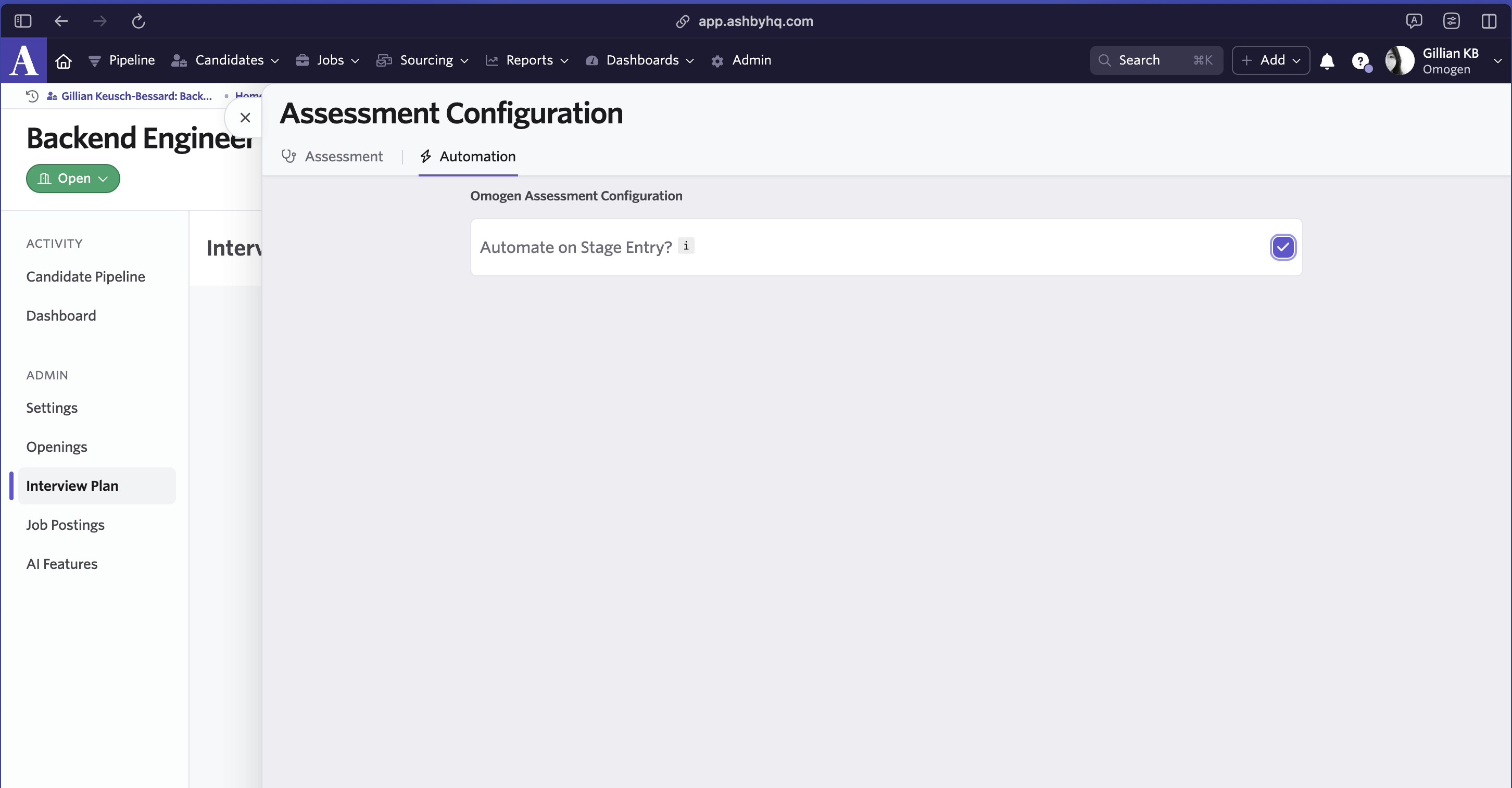
Launch automatically:
- In the assessment configuration, go to "Automation"
- Enable "Automate on Stage Entry"
- Each candidate moved to this stage will immediately receive the Omogen interview
Cancel:
- On the candidate profile, find the Omogen assessment in the activities
- Click "Cancel Assessment" — you can relaunch it later if needed
Support & Resources
- Ashby documentation on assessment integrations: docs.ashbyhq.com
- Omogen FAQ: see the FAQ & Support section
Last updated: 2026-03-16